Companies
Companies
External companies are represented by the Company database model. Each company may be classified into the following categories:
Multi Purpose
A company may be allocated to multiple categories, for example, a company may be both a supplier and a customer.
Internal Companies
A company can also be marked as internal, meaning that it represents your own organization rather than an external business. Internal companies can have their own contacts and addresses, just like any other company.
More than one internal company can be defined - for example, if your organization operates as multiple legal entities, or from multiple sites.
Internal companies are managed from the Internal Companies panel in the Admin Center. To mark an existing company as internal, edit the company and set the is_internal attribute to True.
Default Internal Company
The INVENTREE_DEFAULT_INTERNAL_COMPANY global setting selects which internal company represents your organization by default. Only companies marked as internal can be selected.
If this setting is not specified, and exactly one internal company exists, that company is used as the default.
The default internal company is available to all report and label templates as the internal_company context variable. For example, to render your organization's name and primary address in a report header:
{% if internal_company %}
<h3>{{ internal_company.name }}</h3>
<p>{{ internal_company.primary_address }}</p>
{% endif %}
Edit Company
To edit a company, click on the Edit Company icon in the actions menu. Edit the company information, and then click on Submit.
Permission Required
The edit button will not be available to users who do not have the required permissions to edit the company
Disable Company
Rather than deleting a company, it is possible to disable it. This will prevent the company from being used in new orders, but will not remove it from the database. Additionally, any existing orders associated with the company (and other linked items such as supplier parts, for a supplier) will remain intact. Unless the company is re-enabled, it will not be available for selection in new orders.
It is recommended to disable a company rather than deleting it, as this will preserve the integrity of historical data.
To disable a company, simply edit the company details and set the active attribute to False:

To re-enable a company, simply follow the same process and set the active attribute to True.
Delete Company
To delete a company, click on the Delete icon under the actions menu. Confirm the deletion using the checkbox then click on Submit
Permission Required
The edit button will not be available to users who do not have the required permissions to delete the company
Take Care
Deleting a company instance will also remove any orders or supplied parts associated with that company!
Contacts
Each company can have multiple assigned Contacts. A contact identifies an individual who is associated with the company, including information such as name, email address, phone number, etc.
The list of contacts associated with a particular company is available in the Contacts navigation tab:
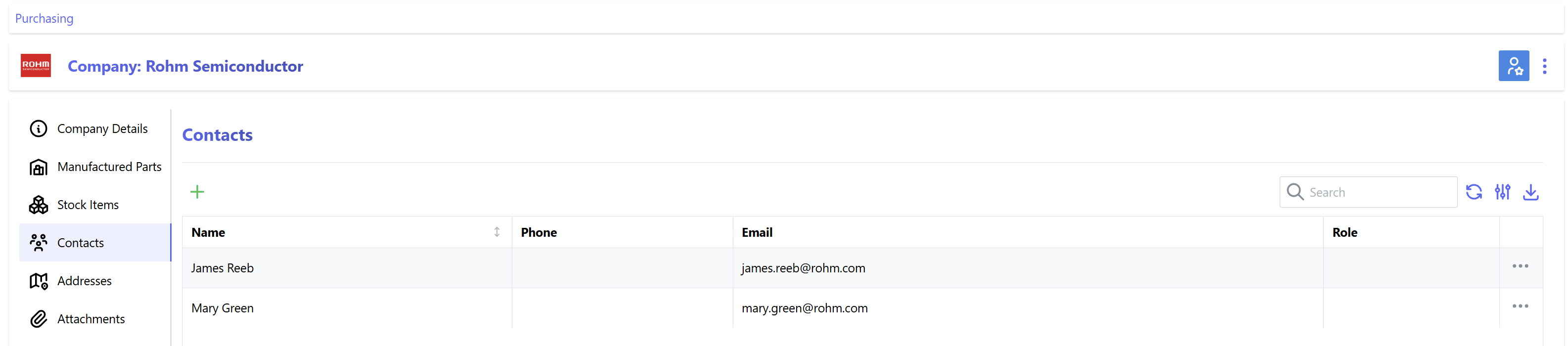
A contact can be assigned to orders, (such as purchase orders or sales orders), and to individual sales order shipments.
Addresses
A company can have multiple registered addresses for use with all types of orders. An address is broken down to internationally recognised elements that are designed to allow for formatting an address according to user needs. Addresses are composed differently across the world, and InvenTree reflects this by splitting addresses into components:
| Field | Description |
|---|---|
| Title | A descriptive name for the address (e.g. "Head Office", "Warehouse", etc) |
| Line 1 | Main street address |
| Line 2 | Extra street address line |
| Postal Code | Also known as ZIP code, this is normally a number 3-5 digits in length |
| City | The city/region tied to the postal code |
| Province | The larger region the address is located in. Also known as State in some countries |
| Country | Country the address is located in |
| Phone | Phone number for this address (optional) |
| Email address for this address (optional) |
Here are a couple of examples of how the address structure differs by country, but these components can construct a correctly formatted address for any given country.
UK Address Format:
Recipient
Line 1
Line 2
City
Postal Code
Country
US Address Format:
Recipient
Line 1
Line 2
City State Postal Code
Country
Primary Address
Each company can have exactly one (1) primary address. This address is the default shown on the company profile, and the one that is automatically suggested when creating an order. Marking a new address as primary will remove the mark from the old primary address.
Managing Addresses
Addresses can be accessed by the Addresses navigation tab, from the company detail page.
Here, the addresses associated with the company are listed, and can be added, edited, or deleted.
