Overview
User Interface
The InvenTree user interface is designed to be intuitive and user-friendly, providing easy access to the various features and functions of the system. The interface is organized into several key components, including navigation menus, settings, forms, tables, search functionality, and more.
The interface is designed for large-format displays, and as such is explicitly not optimized for mobile devices. However, the interface is responsive and should work on a wide range of desktop screen sizes.
Navigation
Navigation throughout the InvenTree interface is designed to be straightforward and efficient, allowing users to quickly access the various sections and features of the system. The navigation is organized into several key areas, including the main menu, navigation menu, and page panels.
Main Menu
The main menu is located at the top of the interface and provides access to the primary sections of the system:

From the main menu, users can access the following items:
As well as allowing navigation to the following main sections:
Navigation Menu
The global navigation menu is located on the left-hand side of the interface and provides access to the various sections of the system.

The navigation menu is organized into several key areas, including:
- Navigation: Provides access to the main sections of the system, including Parts, Stock, Manufacturing, Purchasing, and Sales.
- Settings: Quick access to user settings, system settings, and the admin center.
- Actions: Provides quick access to commonly used actions
- Documentation: Links to the online documentation.
- About: InvenTree version and license information.
User Menu
The user menu is located in the top-right corner of the interface and provides access to user-specific settings and actions.
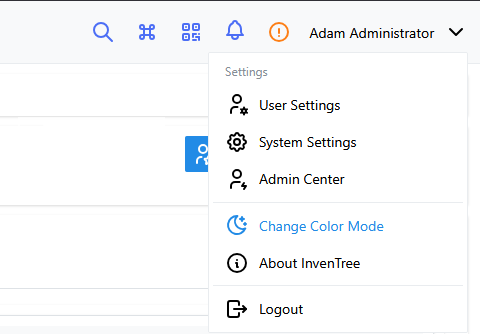
The user menu provides access to the following items:
- User Settings: Access to user settings.
- System Settings: Access to global settings settings. Note: Access to system settings may be restricted based on user permissions.
- Admin Center: Access to the admin center for operational administration
- Database Admin Interface: Low level administration via the Database Admin Interface. Note: Access may be restricted based on user permissions.
- Change Color Mode: Toggle between light and dark color modes.
- About InvenTree: View version and license information about InvenTree.
- Logout: Log out of the InvenTree system.
Page Panels
Most detail pages views within InvenTree are organized into panels, which provide a structured layout for displaying information and actions related to the current page.
Panels are arranged in a vertical stack on the left side of the page, with the main content area on the right. Each panel contains related information and actions, allowing users to easily navigate and interact with the content.

Collapse Panels
The panel sidebar can be collapsed to provide more space for the main content area. To collapse or expand the panel sidebar, click the collapse icon located at the bottom of the sidebar. To expand the sidebar again, click the expand icon that appears when the sidebar is collapsed.
Breadcrumbs
On some pages, a breadcrumb navigation trail is provided at the top of the page, just below the main menu. Breadcrumbs provide a visual representation of the user's current location within the system and allow for easy navigation back to previous pages.

Filtered Detail Navigation
When a detail page is opened from a table that supports detail navigation, the breadcrumb bar can show the current position in the table result set together with Previous and Next buttons. The navigation uses the table's active filters and sort order, so moving between records follows the same list the user was viewing.
The navigation context is stored in the detail URL. This makes links shareable and allows the same filtered result set to be restored when the link is opened in a fresh browser context. The position indicator uses the full result count, while the buttons are hidden at the first and last records.
The navigation controls also work with detail pages provided by frontend plugins that use the standard table and page components.
Tip
This behaviour can be controlled by users with the setting USE_TABLE_NAVIGATION.
Navigation Tree
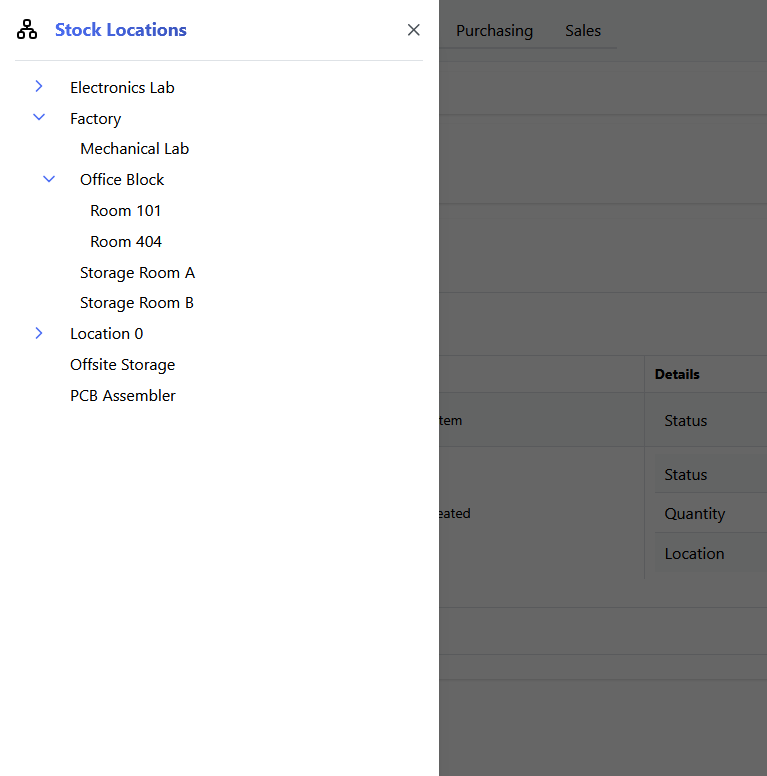
On some pages, a navigation tree is provided on the left-hand side of the page, next to the breadcrumbs. The navigation tree provides a hierarchical view of the current section of the system, allowing users to quickly navigate to related pages and sections.
Click on the navigation tree icon to expand the tree and view the available navigation options:
Searching
The navigation tree includes a search bar at the top of the panel. Typing into the search bar filters the tree to show only entries that match the search query. When a search is active, all matching results are expanded and displayed in a flat list. Clearing the search field returns the tree to its normal browsing mode.
Highlight Selected Entry
The currently selected entry in the navigation tree is highlighted with a distinct background color, making it easy to identify the active page or section within the hierarchy.
Auto-Expand to Selected Entry
When the navigation tree is opened, it automatically expands to reveal the currently selected entry. All ancestor nodes in the hierarchy are expanded so the active entry is immediately visible, without requiring manual navigation through the tree.
Dashboard
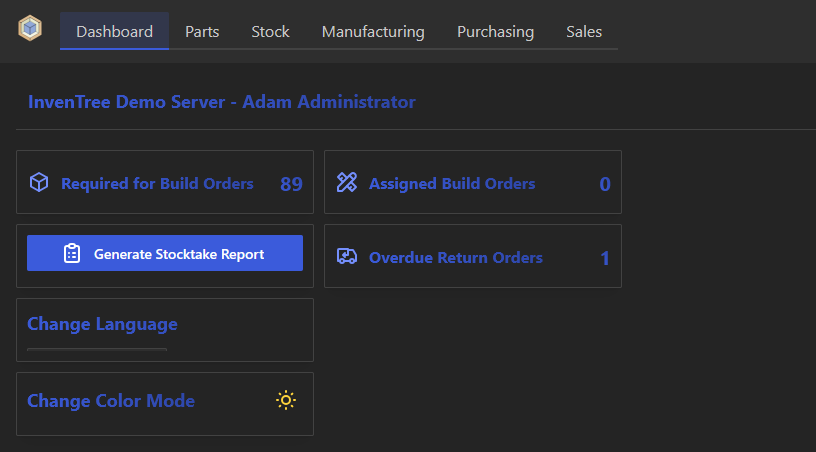
The dashboard provides a customizable landing page for users when they log in to the system. The dashboard can be configured to display a variety of widgets and information panels, providing users with quick access to important data and actions.
Editing Layout
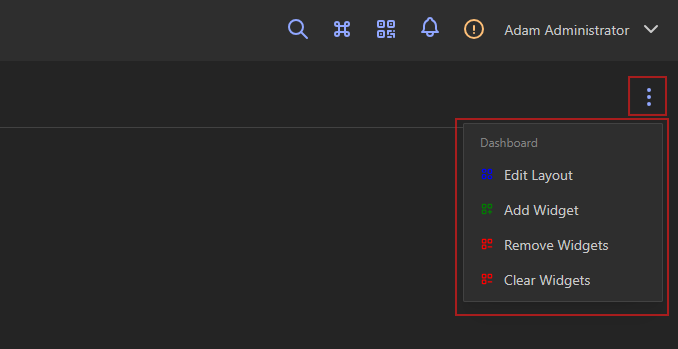
To edit the layout (add, remove, or rearrange widgets) of the dashboard, open the dashboard context menu (located at the top-right corner of the dashboard) and view the available options:
Custom Widgets
In addition to the set of built-in widgets provided by InvenTree, custom dashboard widgets can be implemented using plugins. This allows users to create personalized dashboard experiences tailored to their specific needs and workflows.
Tables
Information throughout the InvenTree interface is often presented in tabular format. Table views support a wide range of features, including pagination, sorting, filtering, and data export.
Read more about working with table views on the dedicated Tables page.
Preview Panels
Rather than navigating directly to an item's detail page, clicking on a table row can instead open a "preview" drawer, providing a quick summary of that item without leaving the current view.
Read more about this optional feature on the dedicated Preview Panels page.
Forms
Data entry and editing within InvenTree is typically performed through the use of forms, which provide a structured interface for inputting and modifying data.
Read more about working with forms on the dedicated Forms page.
Global Search
Accessible from the main menu, the global search functionality allows users to quickly find specific items or information within the InvenTree system.
Read more about the global search feature on the dedicated Global Search page.
Spotlight
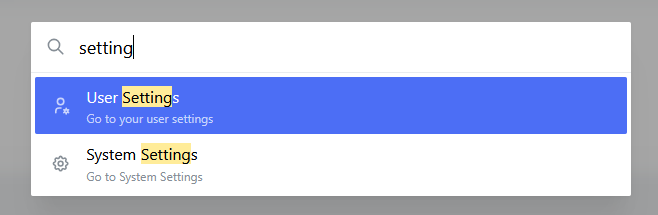
The user interface features a "spotlight" search functionality, which provides a quick and efficient way to access common actions or navigate to specific pages within the InvenTree system. The spotlight search is designed to enhance user productivity by allowing users to quickly find and execute actions without needing to navigate through menus or remember specific page locations.
Open Spotlight
To open the "spotlight" search, click on the "spotlight" icon located in the main menu at the top of the interface. This will open the spotlight search menu, allowing you to enter search queries and view available actions.
Alternatively, the spotlight search can be opened using the keyboard shortcut Ctrl + K (or Cmd + K on macOS), providing a quick and convenient way to access the spotlight functionality without needing to click on the menu icon.
Disable Spotlight
Users may opt to disable the spotlight search functionality if they do not find it useful or prefer not to use it. To disable the spotlight search, navigate to your user settings and locate the option to disable the spotlight feature. Once disabled, the spotlight search will no longer be accessible from the main menu or via keyboard shortcuts.
Copy Button
Many fields within the InvenTree user interface include a "copy" button, which allows users to quickly copy the value of that field to their clipboard. This is particularly useful for fields that contain important identifiers, such as part numbers, stock item codes, or other relevant data that may need to be easily copied and pasted elsewhere.
Secure Context
The "copy" button functionality relies on the browser's clipboard API, which may not be available in all contexts (e.g. if the user is accessing the InvenTree interface via a non-https connection, or through an embedded iframe or a non-standard browser). In such cases, the "copy" button may not function as intended.
User Permissions
Many aspects of the user interface are controlled by user permissions, which determine what actions and features are available to each user based on their assigned roles and permissions within the system. This allows for a highly customizable user experience, where different users can have access to different features and functionality based on their specific needs and responsibilities within the organization.
If a user does not have permission to access a particular feature or section of the system, that feature will be hidden from their view in the user interface. This helps to ensure that users only see the features and information that are relevant to their role, reducing clutter and improving usability.
Language Support
The InvenTree user interface supports multiple languages, allowing users to interact with the system in their preferred language.
The default system language can be configured by the system administrator in the server configuration options.
Additionally, users can select their preferred language in their user settings, allowing them to override the system default language with their own choice. This provides a personalized experience for each user, ensuring that they can interact with the system in the language they are most comfortable with.