Global Search
Global Search
Accessible from the main menu, the global search functionality allows users to quickly find specific items or information within the InvenTree system. The search icon is located at the top of the interface and provides a convenient way to search across all sections of the system.
Clicking on the "search" icon (in the menu bar) opens the search menu, which allows users to enter search queries and view results from across the system.

Search results are organized by category (e.g. Parts, Stock, Manufacturing, etc.) and provide quick access to the relevant pages for each search result.
Detail View
To navigate to the detail page for a particular search result, simply click on the desired result from the search results list. This will take you directly to the relevant page within the InvenTree system, allowing you to view and interact with the specific item or information you were searching for.
Preview Panel
Instead of navigating directly to a result's detail page, search results can be configured to open in the preview panel, keeping the global search menu open behind it.
To enable this behavior, both of the following user settings must be enabled, found in the Search tab of the user settings page:
- Table Preview Panel - enables the preview panel feature generally
- Search Results Preview Panel - enables the preview panel specifically for global search results
With both settings enabled, clicking on a search result opens the preview drawer instead of navigating away. As with other preview panel usages, hold Ctrl (or Cmd on macOS) while clicking, or middle-click, to bypass the preview and navigate directly to the detail page.
Full Results
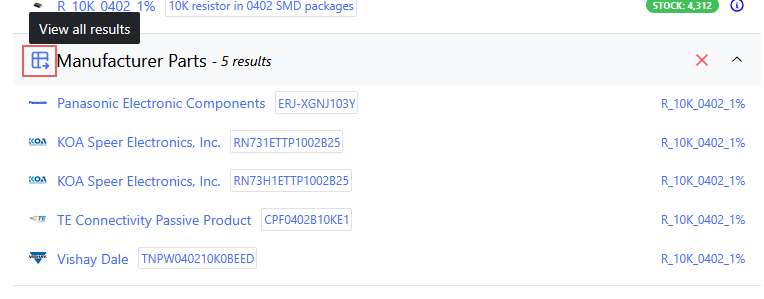
The "global search" menu provides a limited set of search results for each category, typically showing the most relevant or recent results. To view the full set of search results for a particular category, click on the "View all results" button located at the top-left of the search results list for that category:
Collapse Result Groups
To collapse a particular category of search results in the global search menu, click on the "collapse" icon located at the top-right corner of the search results list for that category. This will hide the search results for that category, allowing you to focus on other categories or search results.
Remove Result Groups
To remove a particular category of search results from the global search menu, click on the "remove" icon located at the top-right corner of the search results list for that category.