Preview Panels
Preview Panels
Many table views in InvenTree link each row to the detail page for the underlying item. By default, clicking on a row navigates directly to that detail page.
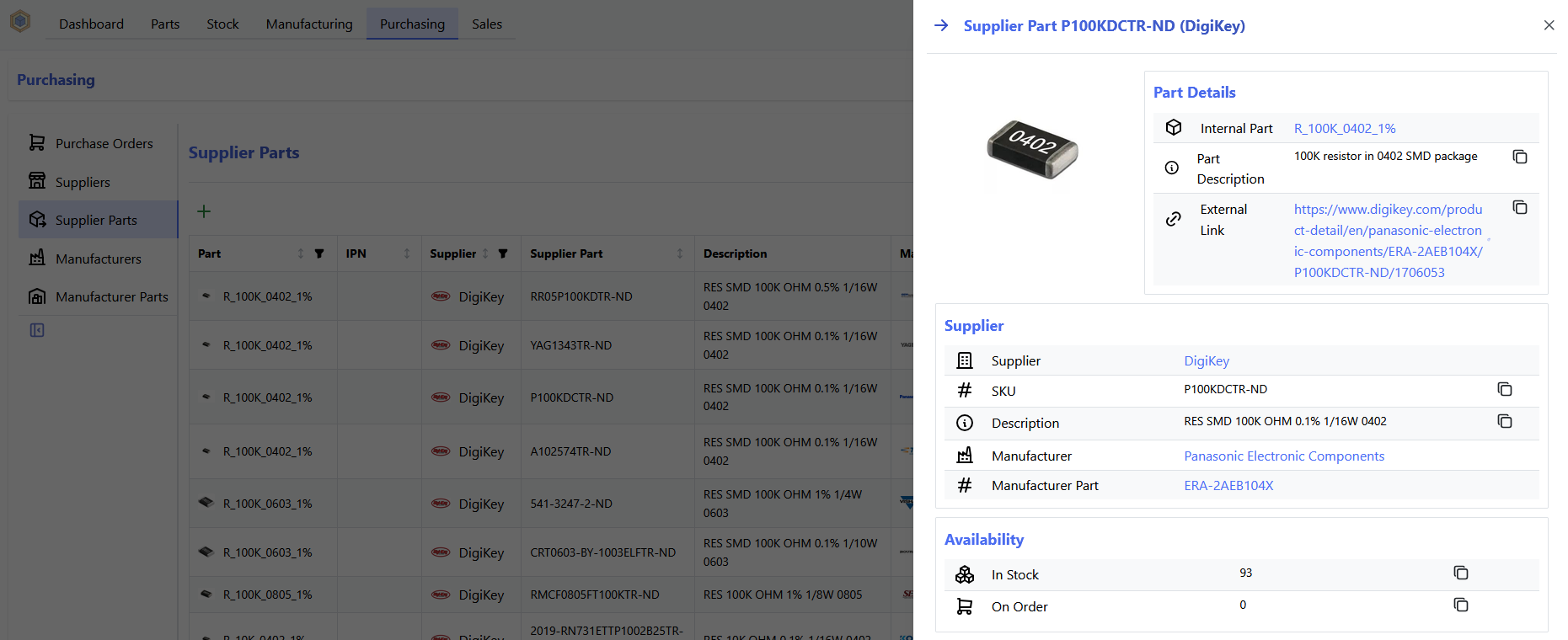
If the preview panel feature is enabled, clicking on a row instead opens a "preview" drawer on the right-hand side of the screen. The preview drawer displays a summary of the selected item, without navigating away from the current table view.
Enabling the Preview Panel
The preview panel is disabled by default. It can be enabled on a per-user basis via the Table Preview Panel option, found in the Display Options tab of the user settings page.
Using the Preview Panel
Once enabled, clicking on a row in a supported table opens the preview drawer for that item, rather than navigating to its detail page.
Viewing Full Details
The preview drawer title includes an arrow icon, linking to the full detail page for the previewed item. Click on the title (or the arrow icon) to navigate to the detail page and close the drawer.

Following Links
Any link within the preview drawer (for example, a link to a related part or category) can be clicked to navigate directly to that page. The preview drawer closes automatically when a link is followed.
Bypassing the Preview
To navigate directly to an item's detail page without opening the preview drawer, hold Ctrl (or Cmd on macOS) while clicking the row, or middle-click the row to open the detail page in a new tab.
Closing the Preview
The preview drawer can be closed by clicking the close button, clicking outside the drawer, or pressing Escape.