Parts
Part
The Part is the core element of the InvenTree ecosystem. A Part object is the archetype of any stock item in your inventory. Parts are arranged in hierarchical categories which are used to organize and filter parts by function.
Part Stock
Each part can have multiple stock items associated with it, which represent the physical quantity of that part in various locations. The total stock level for a given part is the sum of all stock items associated with that part.
Minimum Stock
A part may have a specified "minimum stock" level. This is a user-defined value which indicates the minimum quantity of that part which should be kept in stock at all times. If the total stock level for a given part falls below the minimum stock level, the part is flagged as "low stock" and can be easily identified in the interface.
Maximum Stock
A part may also have a specified "maximum stock" level. This is a user-defined value which indicates the maximum quantity of that part which should be kept in stock at all times. If the total stock level for a given part exceeds the maximum stock level, the part is flagged as "overstocked" and can be easily identified in the interface.
Part Category
Part categories are very flexible and can be easily arranged to match a particular user requirement. Each part category displays a list of all parts under that given category. This means that any part belonging to a particular category, or belonging to a sub-category, will be displayed.
Each part category also shows a list of sub-categories which exist underneath it.
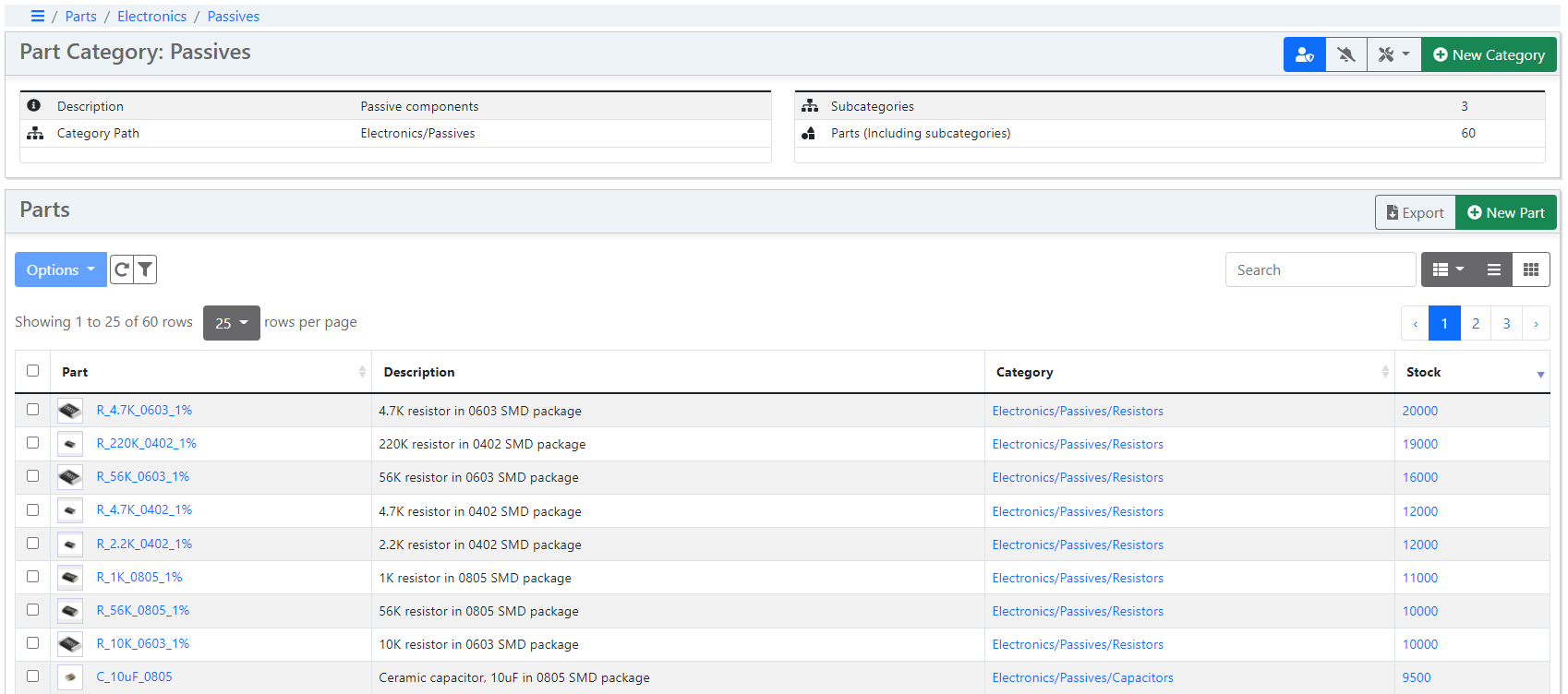
The category part list provides an overview of each part:
- Part name and description
- Part image thumbnail
- Part category
- Part stock level
The list of parts underneath a given category can be filtered by multiple user-configurable filters, which is especially useful when a large number of parts exist under a certain category.
Clicking on the part name links to the Part Detail view.
Part Attributes
Each Part defined in the database provides a number of different attributes which determine how that part can be used. Configuring these attributes for a given part will impact the available functions that can be perform on (or using) that part.
Virtual
A Virtual part is one which does not physically exist but should still be tracked in the system. This could be a process step, machine time, software license, etc. Refer to the virtual parts documentation for more information.
Template
A Template part is one which can have variants which exist underneath it. Read further information about template parts here.
Assembly
If a part is designated as an Assembly it can be created (or built) from other component parts. As an example, a circuit board assembly is made using multiple electronic components, which are tracked in the system. An Assembly Part has a Bill of Materials (BOM) which lists all the required sub-components. Read further information about BOM management here.
An assembled stock item can also be broken back down into its component parts, using the disassembly process.
Component
If a part is designated as a Component it can be used as a sub-component of an Assembly. Read further information about BOM management here
Testable
Testable parts can have test templates defined against the part, allowing test results to be recorded against any stock items for that part. For more information on testing, refer to the testing documentation.
Trackable
Trackable parts can be assigned batch numbers or serial numbers which uniquely identify a particular stock item. Trackable parts also provide other features (and restrictions) in the InvenTree ecosystem.
Read further information about trackable parts here.
Purchaseable
If a part is designated as Purchaseable it can be purchased from external suppliers. Setting this flag allows parts be linked to supplier parts and procured via purchase orders.
Suppliers
A Supplier is an external vendor who provides goods or services.
Supplier Parts
Purchaseable parts can be linked to Supplier Parts. A supplier part represents an individual piece or unit that is procured from an external vendor.
Purchase Orders
A Purchase Order allows parts to be ordered from an external supplier.
Salable
If a part is designated as Salable it can be sold to external customers. Setting this flag allows parts to be added to sales orders.
Consumable
A Consumable part is one which is generally used up during a build or other process, rather than being tracked and allocated as a discrete item. Refer to the consumable parts documentation for more information.
Locked Parts
Parts can be locked to prevent them from being modified. This is useful for parts which are in production and should not be changed. The following restrictions apply to parts which are locked:
- Locked parts cannot be deleted
- BOM items cannot be created, edited, or deleted when they are part of a locked assembly
- Parameters linked to a locked part cannot be created, edited or deleted
The part locking functionality can be enabled or disabled globally via the Part Locking system setting (PART_ENABLE_LOCKING). When disabled, the locked state of a part is ignored and all operations are permitted.
Active Parts
By default, all parts are Active. Marking a part as inactive means it is not available for many actions, but the part remains in the database. If a part becomes obsolete, it is recommended that it is marked as inactive, rather than deleting it from the database.
Units of Measure
Each type of part can define a custom "unit of measure" which is a standardized unit which is used to track quantities for a particular part. By default, the "unit of measure" for each part is blank, which means that each part is tracked in dimensionless quantities of "pieces".
Read More
Read more on how InvenTree supports physical units of measure
Physical Units
It is possible to track parts using physical quantity values, such as metres or litres. For example, it would make sense to track a "wire" in units of "metres":

Supplier Part Units
By default, units of measure for supplier parts are specified in the same unit as their base part. However, supplier part units can be changed to any unit which is compatible with the base unit.
Example: Supplier Part Units
If the base part has a unit of metres then valid units for any supplier parts would include feet, cm, inches (etc)
If an incompatible unit type is specified, an error will be displayed:

Part Images
Each part can have an associated image, which is used for display purposes throughout the InvenTree interface. A prominent example is on the part detail page itself:
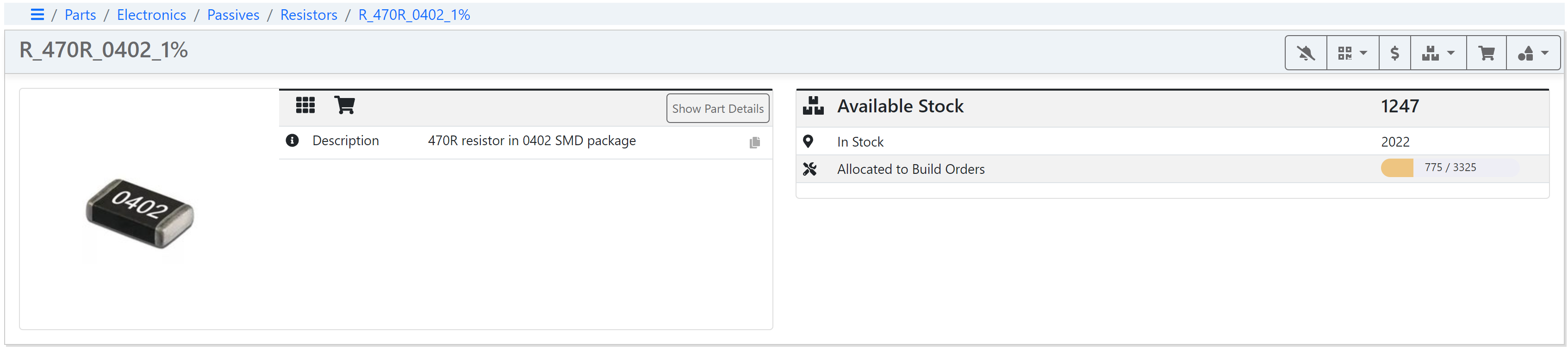
Image Thumbnails
Thumbnail images are also used throughout the interface, particularly in table views, to reduce data load on the server. These thumbnail images are generated automatically when a new part image is uploaded.
Uploading Part Image
Web Interface
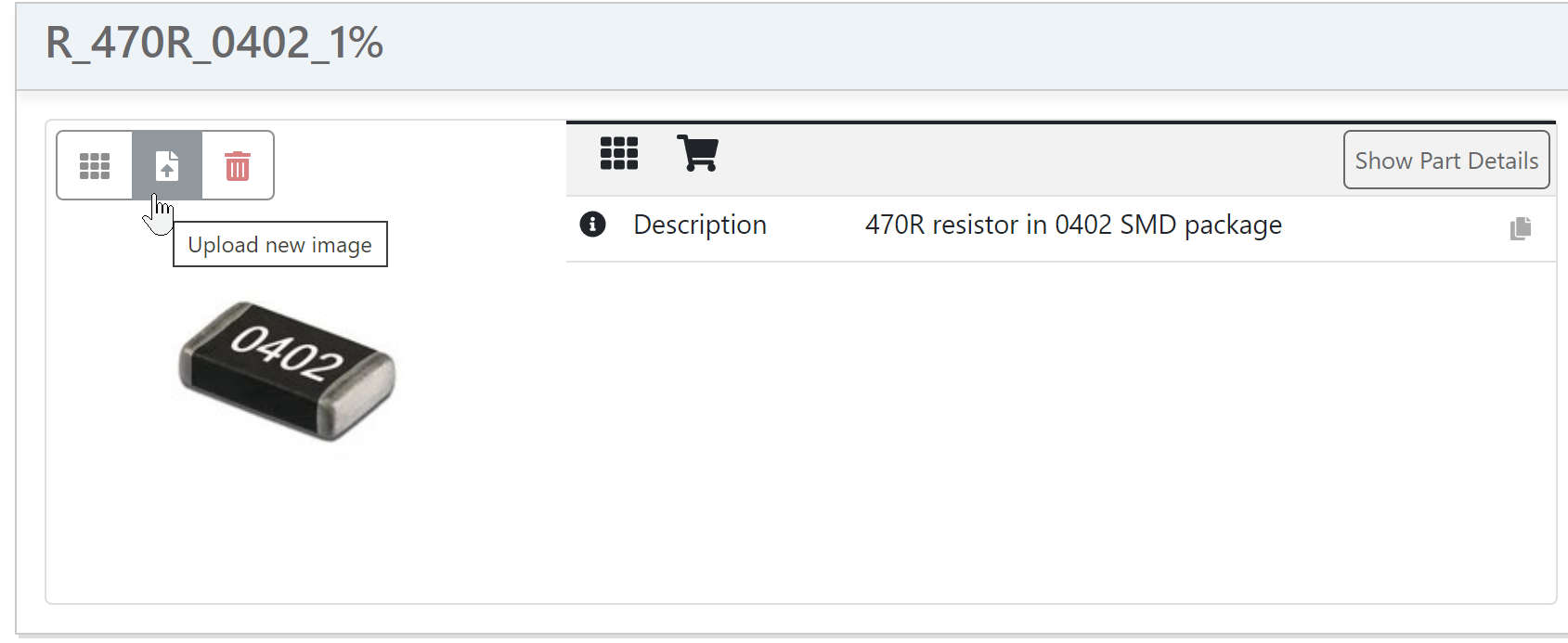
In the web interface, part images can be uploaded directly from the part view. Hover the mouse cursor over the Part image to reveal multiple options:
| Action | Description |
|---|---|
| Upload new image | Select an image file from your local computer to associate with the selected part |
| Select from existing images | Select an image from a list of part images which already exist in the database |
| Delete image | Remove the associated image from the selected part |
API
Image upload is supported via the InvenTree API, allowing images to be associated with parts programmatically. Further, this means that the Python interface also supports image upload.
Mobile App
The InvenTree mobile app allows part images to be directly uploaded, either from stored files or integrated camera.
Part Import
Part data can be imported using the data import wizard. This allows part data to be imported from an external file, which can be useful for bulk importing of part data.