Transfer Orders
Transfer Orders
Transfer orders provide a method for requesting stock to be moved from one location to another. It does not replace the existing on-demand stock transaction options, but lets you "document" many transactions from a single view.
View Transfer Orders
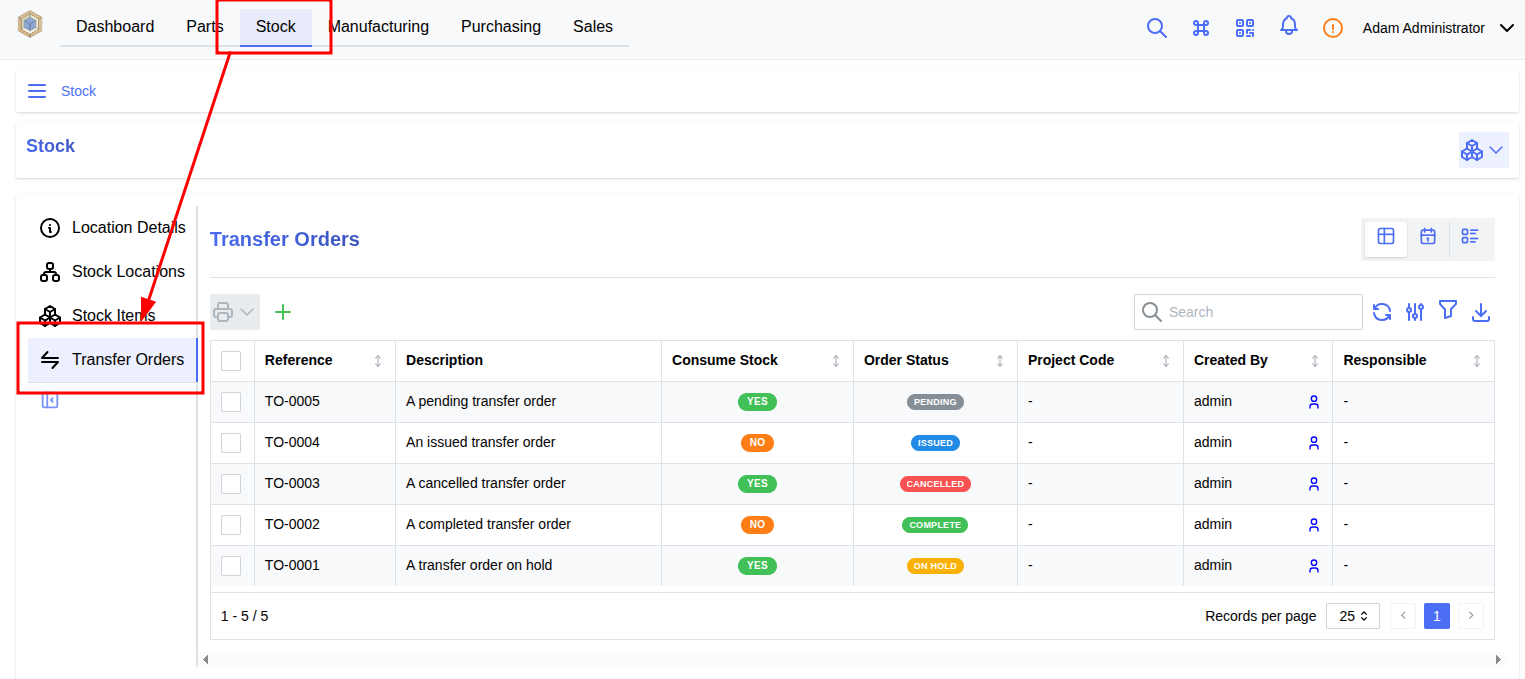
To navigate to the Transfer Order display, select Stock from the main navigation menu, and Transfer Orders from the sidebar:
The following view modes are available:
Table View
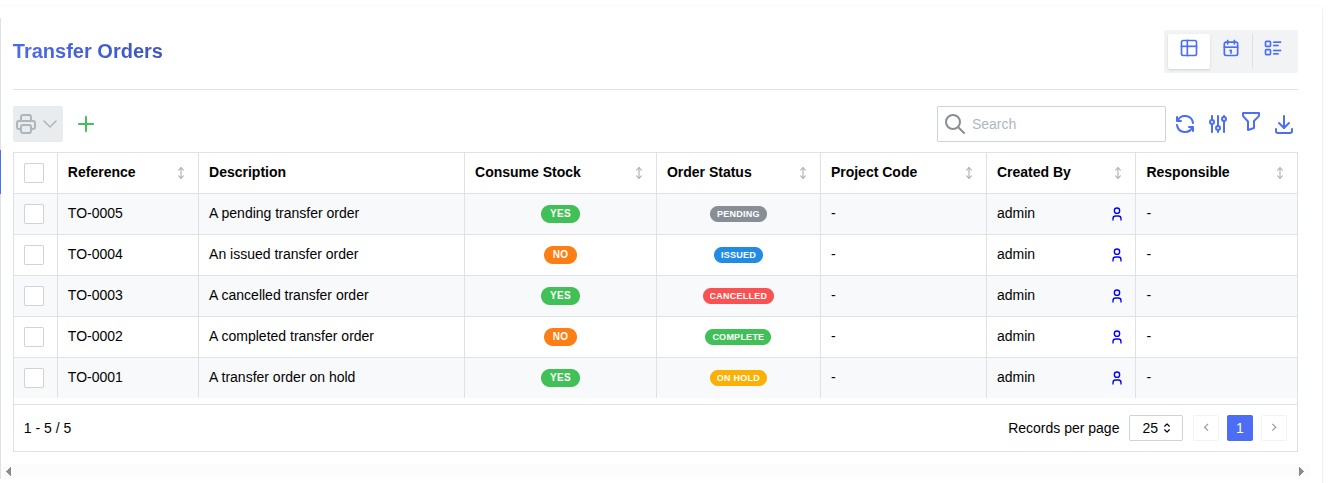
Table View provides a list of Transfer Orders, which can be filtered to display a subset of orders according to user supplied parameters.
Calendar View
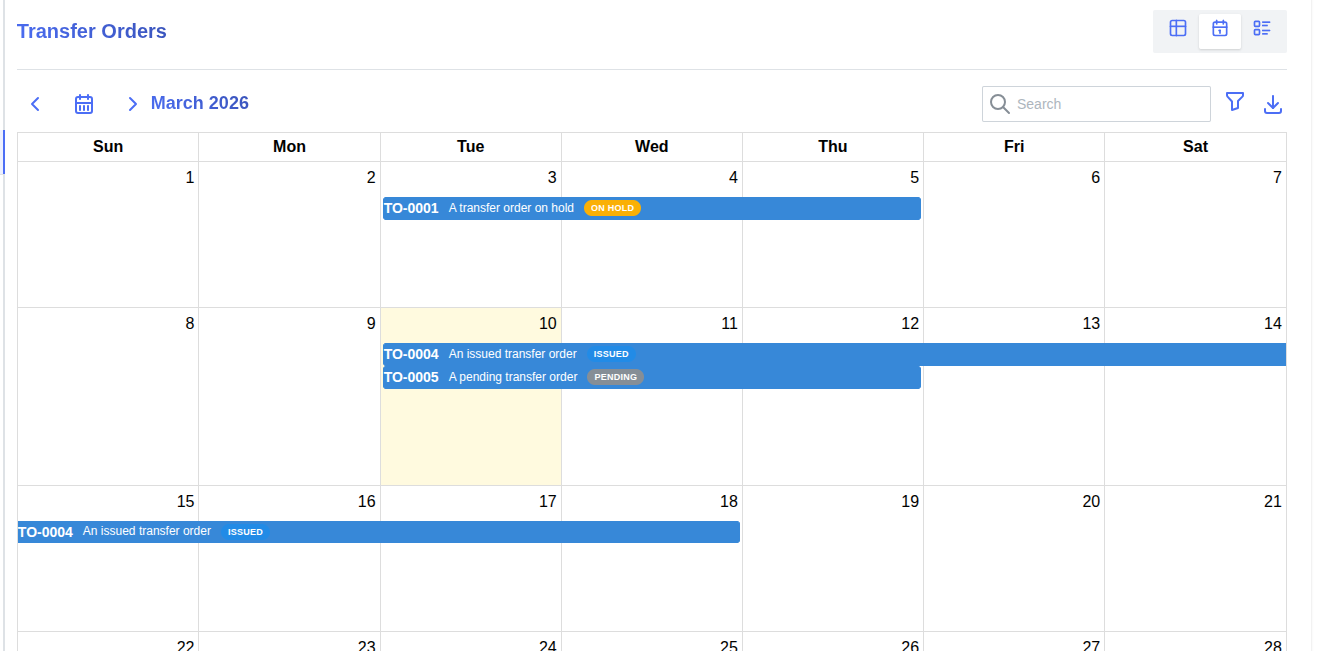
Calendar View shows a calendar display with outstanding transfer orders.
Transfer Order Status Codes
Each Transfer Order has a specific status code, which represents the state of the order:
| Status | Description |
|---|---|
| Pending | The transfer order has been created, but has not been finalized or submitted |
| Issued | The transfer order has been issued, and is in progress |
| On Hold | The transfer order has been placed on hold, but is still active |
| Complete | The transfer order is fully completed, and is now closed |
| Cancelled | The transfer order was cancelled, and is now closed |
Source Code
Refer to the source code for the Transfer Order status codes:
Defines a set of status codes for a TransferOrder.
Source code in src/backend/InvenTree/order/status_codes.py
121 122 123 124 125 126 127 128 129 | |
Transfer Order Status supports custom states.
Transfer Order Parameters
The following parameters are available for each Transfer Order, and can be edited by the user:
| Parameter | Description |
|---|---|
| Reference | Transfer Order reference e.g. '001' |
| Description | Description of the Transfer Order |
| Project Code | Project Code of the Transfer Order |
| Source Location | Stock location to source stock items from (blank = all locations) |
| Destination Location | Stock location where the stock will be transferred |
| Consume Stock | Rather than transfer the stock to the destination, "consume" it by removing the specified quantity from the allocated stock item |
| Start Date | The scheduled start date for the transfer |
| Target Date | Target date for transfer completion |
| External Link | Link to external webpage |
| Responsible | User (or group of users) who is responsible for the transfer |
| Notes | Transfer notes, supports markdown |
Create a Transfer Order
Once the transfer order page is loaded, click on New Transfer Order which opens the "Create Transfer Order" form.
Fill out the rest of the form with the transfer order information then click on Submit to create the order.
Transfer Order Reference
Each Transfer Order is uniquely identified by its Reference field. Read more about reference fields.
Add Line Items
On the transfer order detail page, user can link parts to the transfer order selecting the Line Items tab then clicking on the Add Line Item button.
Once the "Add Line Item" form opens, select a part in the list.
Warning
Only parts that have the "Virtual" attribute disabled will be shown and can be selected.
Fill out the rest of the form then click on Submit
Allocate Stock Items
After line items were created, user can either:
- Allocate stock items for that part to the transfer order (click on button)
- Create a build order for that part to cover the quantity of the transfer order (click on button)
Complete Order
Once all items in the transfer order have been allocated, click on Complete Order to mark the transfer order as complete. Confirm then click on Submit to complete the order.
Transferred Stock
After completing the transfer order, a Transferred Stock tab will appear showing which stock was affected.
Warning
Similar to received stock on purchase orders, this tab will only be accurate while the affected stock items still exist. Furthermore, if the stock item is depleted while using the "consume" parameter, it will not appear here unless "delete on deplete" is turned off for this stock item
Cancel Order
To cancel the order, click on the menu button next to the Complete Order button, then click on the " Cancel Order" menu option. Confirm then click on the Submit to cancel the order.
Order Scheduling
Transfer orders can be scheduled for a future date, to allow for order scheduling.
Start Date
The Start Date of the transfer order is the date on which the order is scheduled to be issued, allowing work to begin on the order.
Target Date
The Target Date of the transfer order is the date on which the order is scheduled to be completed.
Overdue Orders
If the Target Date of the transfer order has passed, the order will be marked as overdue.
Calendar view
Using the button to the top right of the list of Transfer Orders, the view can be switched to a calendar view using the button . This view shows orders with a defined target date only.
This view can be accessed externally as an ICS calendar using a URL like the following:
http://inventree.example.org/api/order/calendar/transfer-order/calendar.ics
By default, completed orders are not exported. These can be included by appending ?include_completed=True to the URL.
Transfer Order Settings
The following global settings are available for transfer orders:
| Name | Description | Default | Units |
|---|---|---|---|
Enable Transfer Orders |
Enable transfer order functionality in the user interface | False |
|
Transfer Order Reference Pattern |
Required pattern for generating Transfer Order reference field | TO-{ref:04d} |
|
Require Responsible Owner |
A responsible owner must be assigned to each order | False |
|
Edit Completed Transfer Orders |
Allow editing of transfer orders after they have been completed | False |