Sales Orders
Sales Orders
Sales orders allow tracking of which stock items are sold to customers, therefore converting stock items / inventory into externally sold items.
View Sales Orders
To navigate to the Sales Order display, select Sales from the main navigation menu, and Sales Orders from the sidebar:
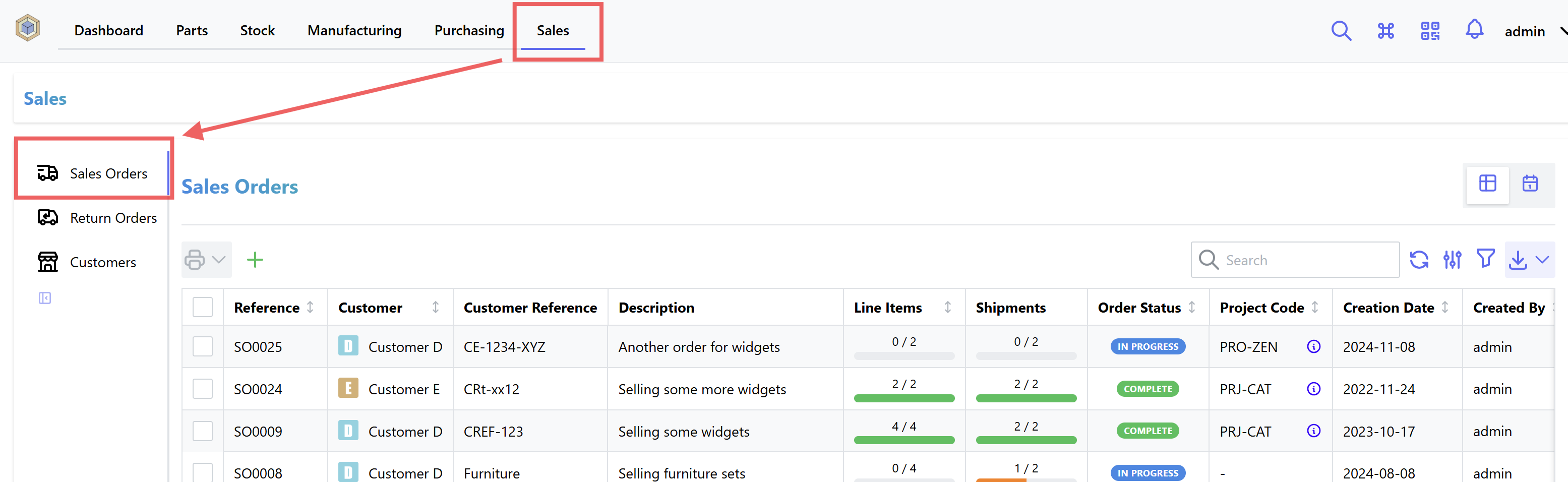
The following view modes are available:
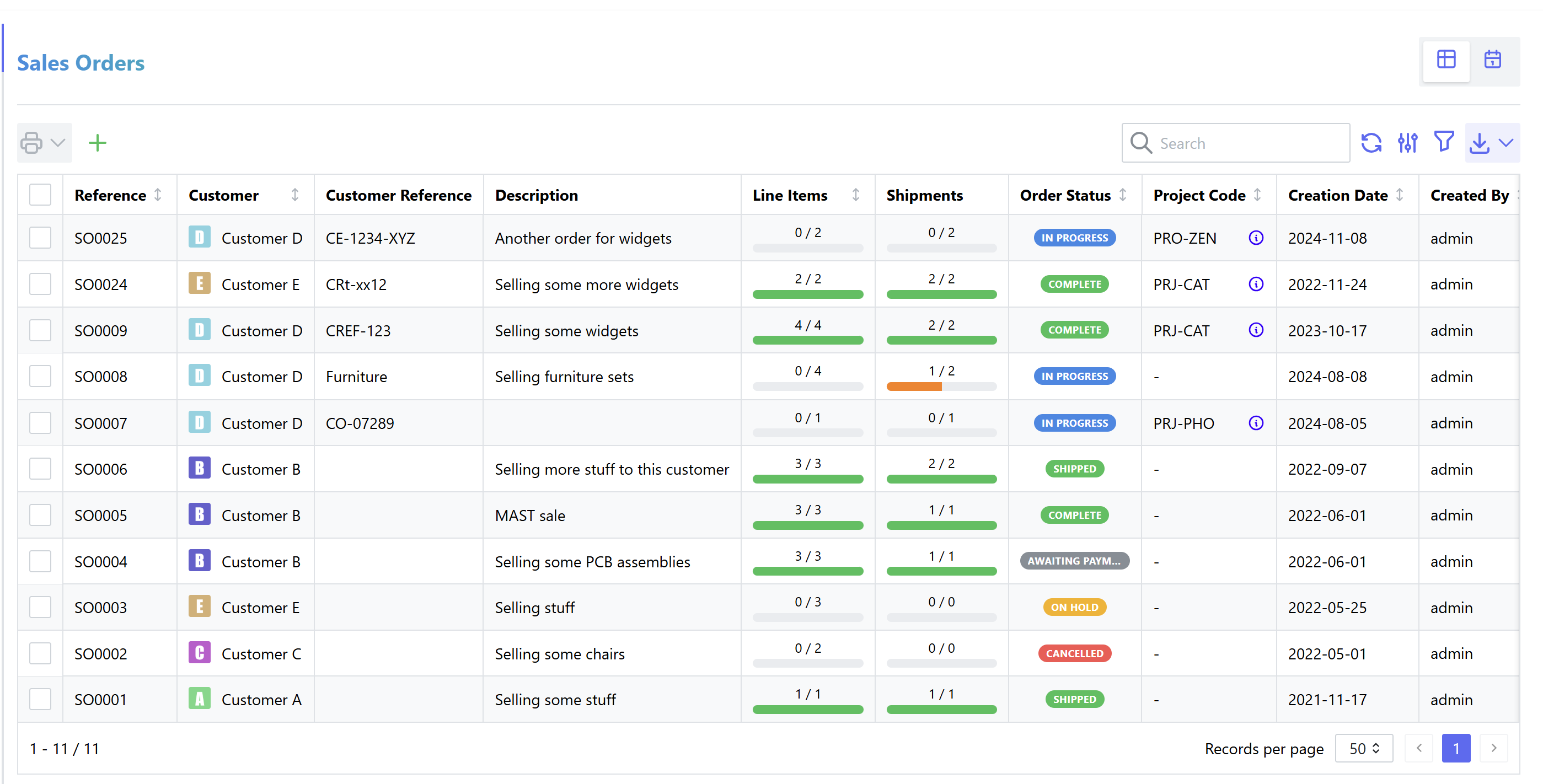
Table View
Table View provides a list of Sales Orders, which can be filtered to display a subset of orders according to user supplied parameters.
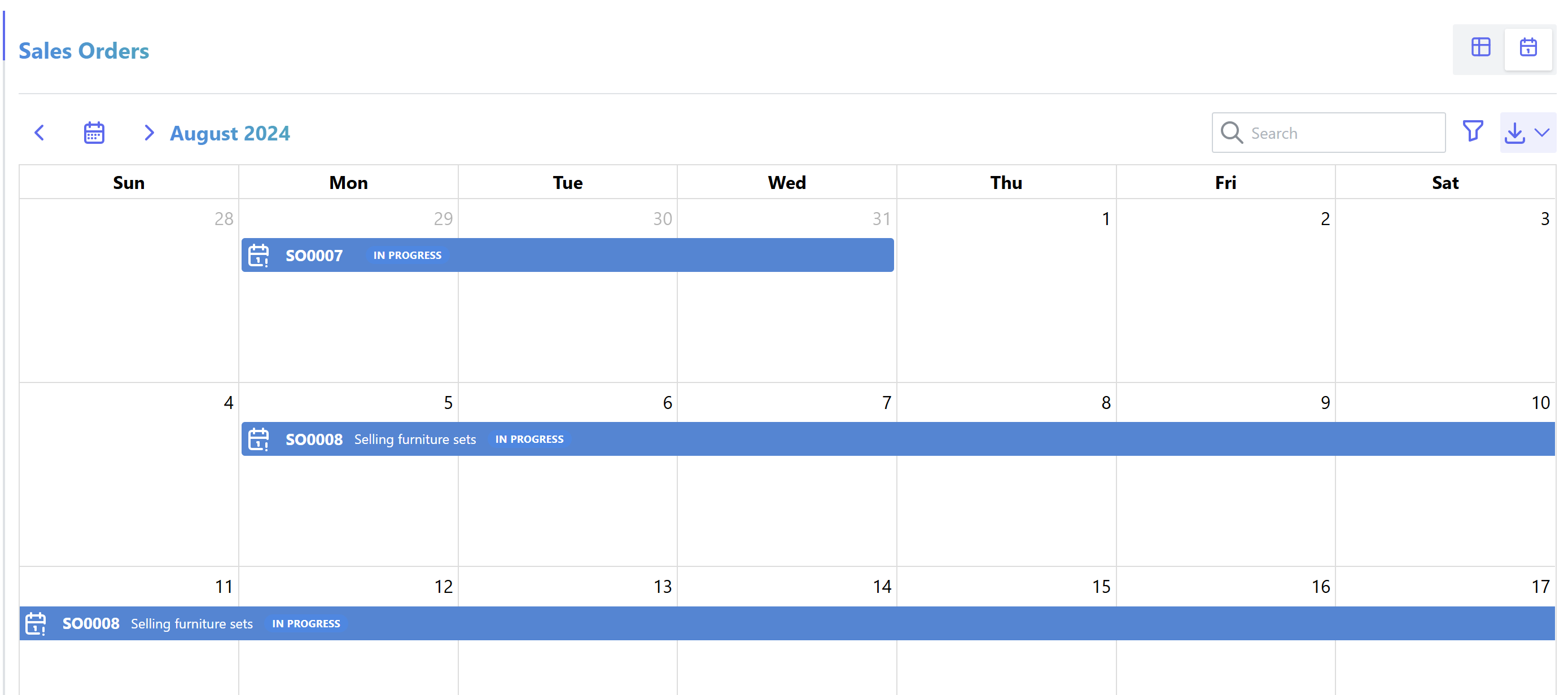
Calendar View
Calendar View shows a calendar display with outstanding sales orders.
Sales Order Status Codes
Each Sales Order has a specific status code, which represents the state of the order:
| Status | Value | Description |
|---|---|---|
| Pending | 10 | Order is pending |
| In Progress | 15 | Order has been issued, and is in progress |
| Shipped | 20 | Order has been shipped to customer |
| On Hold | 25 | Order is on hold |
| Complete | 30 | Order is complete |
| Cancelled | 40 | Order has been cancelled |
| Lost | 50 | Order was lost |
| Returned | 60 | Order was returned |
Sales Order Status supports custom states.
Sales Order Currency
The currency code can be specified for an individual sales order. If not specified, the default currency specified against the customer will be used.
Sales Order Address
A sales order can have a specific shipping address assigned to it. The shipping address can be selected from the list of addresses assigned to the customer which is linked to the sales order.
Create a Sales Order
Once the sales order page is loaded, click on New Sales Order which opens the "Create Sales Order" form.
A Sales Order is linked to a specific customer, select one in the list of existing customers.
Customers Only
Only companies with the "Customer" attribute enabled will be shown and can be selected
Fill out the rest of the form with the sales order information then click on Submit to create the order.
Sales Order Reference
Each Sales Order is uniquely identified by its Reference field. Read more about reference fields.
Add Line Items
On the sales order detail page, user can link parts to the sales order selecting the Line Items tab then clicking on the Add Line Item button.
Once the "Add Line Item" form opens, select a part in the list.
Warning
Only parts that have the "Salable" attribute enabled will be shown and can be selected
Fill out the rest of the form then click on Submit
Discount
An optional discount percentage can be applied to each line item.
Extra Line Items
While line items must reference a particular part, extra line items are available for any other itemized information that needs to be conveyed with the order - for example freight charges or service fees. Extra line items support an optional discount percentage, the same as regular line items.
Shipments
After all line items were added to the sales order, user needs to create one or more shipments in order to allocate stock for those parts.
In order to create a new shipment:
- Click on the Pending Shipments tab
- Click on New Shipment button, fill out the form with the shipment number (tracking number can be added but is optional) then click on Submit
Repeat the two steps above to create more shipments.
Allocate Stock Items
After shipments were created, user can either:
- Allocate stock items for that part to the sales order (click on button)
- Create a build order for that part to cover the quantity of the sales order (click on button)
During the allocation process, user is required to select the desired shipment that will contain the stock items.
Auto Allocate Stock
To speed up the allocation process, use the Auto Allocate Stock button () available in the Line Items tab. This automatically finds available stock and creates the required allocations with minimal user interaction.
Background Task
Auto-allocation runs as a background task. The UI will display a progress indicator while the task is running.
Selecting Lines to Allocate
By default, auto-allocation processes all unallocated line items on the order. To restrict allocation to a subset of lines, select the desired rows in the Line Items table before pressing the button — the dialog will indicate how many lines are selected.
Auto Allocation Options
The auto-allocation dialog provides the following options:
Source Location
Restrict stock to a specific location (and all of its sub-locations). Leave blank to consider stock from any location.
Exclude Location
Exclude stock from a specific location (and all of its sub-locations). Useful for reserving stock in a particular area.
Shipment
Optionally assign all new allocations to a specific pending shipment. Only shipments that have not yet been completed are shown.
Interchangeable Stock
When enabled (default), stock may be drawn from multiple stock items or locations to fulfil a single line item. When disabled, a line item is only allocated if a single stock item can cover the entire remaining quantity.
Take Care
Enabling Interchangeable Stock means the auto-allocation routine will combine stock from different batches or locations. Review the resulting allocations if traceability is important.
Stock Priority
Controls the order in which matching stock items are consumed:
| Option | Description |
|---|---|
| Oldest stock first (FIFO) | Stock items updated least recently are consumed first (default) |
| Newest stock first (LIFO) | Stock items updated most recently are consumed first |
| Smallest quantity first | Stock items with the lowest available quantity are consumed first |
| Largest quantity first | Stock items with the highest available quantity are consumed first |
| Soonest expiry date first | Stock items expiring earliest are consumed first; items with no expiry date are used last |
Serialized Stock
Controls whether serialized stock items are included in the auto-allocation:
| Option | Description |
|---|---|
| Allow any stock | Both serialized and unserialized stock items are considered (default) |
| Serialized stock only | Only stock items that carry a serial number are allocated |
| Unserialized stock only | Only stock items without a serial number are allocated |
Allocation Behaviour
The auto-allocation routine performs the following steps for each eligible line item:
- Skips line items for virtual parts.
- Skips line items that are already fully allocated.
- Queries available stock for the line's part, applying any location and serialized-stock filters.
- Sorts the candidates according to the chosen Stock Priority.
- Greedily allocates from each stock item in turn until the remaining quantity for the line is satisfied.
Removing Allocations
Individual or multiple allocations can be removed from the Allocated Stock tab. Select the allocations to remove and use the Delete action.
Shipped Allocations Protected
Allocations that belong to a completed (shipped) shipment cannot be deleted.
Check Shipment
Shipments can be marked as "checked" to indicate that the items in the shipment has been verified. To mark a shipment as "checked", open the shipment actions menu, and select the "Check" action:

The shipment will be marked as checked by the current user.
Uncheck Shipment
If the shipment requires further verification after being marked as "checked", it can be marked as "unchecked" in a similar manner.
Complete Shipment
To complete a shipment, click on the Pending Shipments tab then click on button shown in the shipment table.
Fill out the "Complete Shipment" form then click on Submit.
To view all the completed shipment, click on the Completed Shipments tab. In the completed shipments table, click on each shipment to view the shipment details.
Complete Order
Once all items in the sales order have been shipped, click on Complete Order to mark the sales order as shipped. Confirm then click on Submit to complete the order.
Cancel Order
To cancel the order, click on the menu button next to the Complete Order button, then click on the " Cancel Order" menu option. Confirm then click on the Submit to cancel the order.
Order Scheduling
Sales orders can be scheduled for a future date, to allow for order scheduling.
Start Date
The Start Date of the sales order is the date on which the order is scheduled to be issued, allowing work to begin on the order.
Target Date
The Target Date of the sales order is the date on which the order is scheduled to be completed and shipped.
Overdue Orders
If the Target Date of the sales order has passed, the order will be marked as overdue.
Calendar view
Using the button to the top right of the list of Sales Orders, the view can be switched to a calendar view using the button . This view shows orders with a defined target date only.
This view can be accessed externally as an ICS calendar using a URL like the following:
http://inventree.example.org/api/order/calendar/sales-order/calendar.ics
By default, completed orders are not exported. These can be included by appending ?include_completed=True to the URL.
Sales Order Shipments
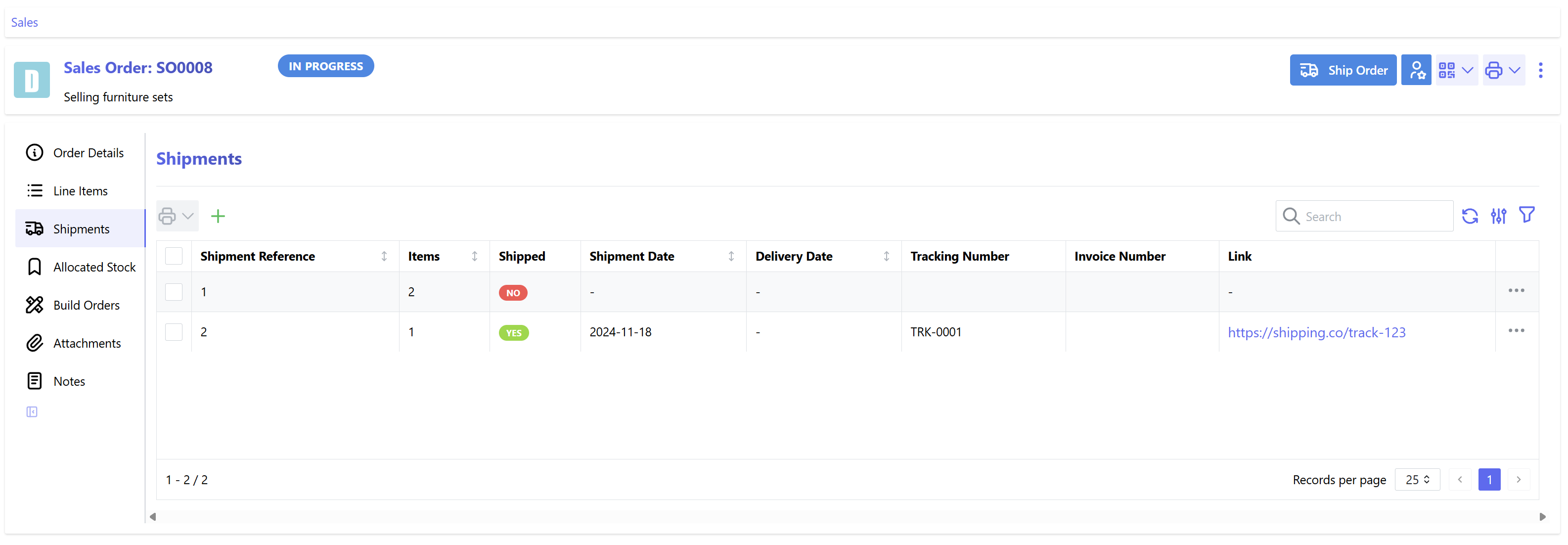
Shipments are used to track sales items when they are shipped to customers. Multiple shipments can be created against a Sales Order, allowing line items to be sent to customers in multiple deliveries.
On the main Sales Order detail page, the order shipments are split into two categories, Pending Shipments and Completed Shipments:
Pending Shipments
The Pending Shipments panel displays the shipments which have not yet been sent to the customer.
- Each shipment displays the items which have been allocated to it
- Pending sales order items can be allocated to these shipments
- New shipments can be created if the order is still open
Creating a new Shipment
To create a new shipment for a sales order, press the New Shipment button above the pending shipments table.
Completing a Shipment
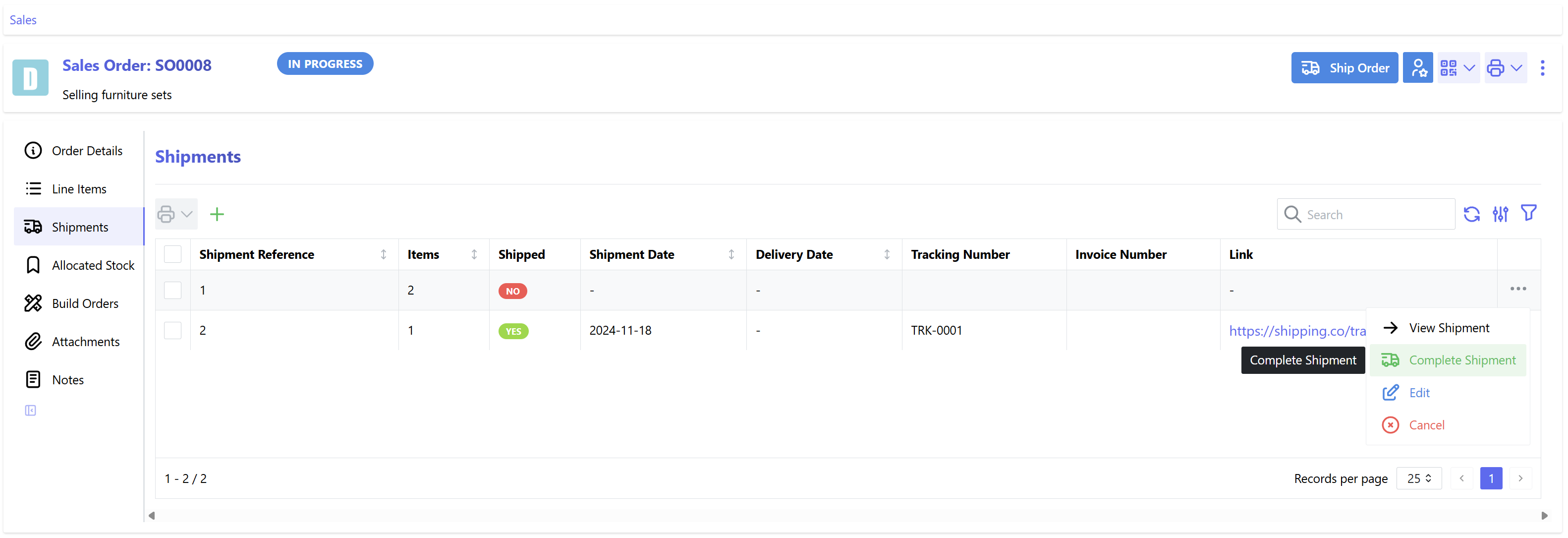
To complete a shipment, press the Complete Shipment button associated with the particular shipment:
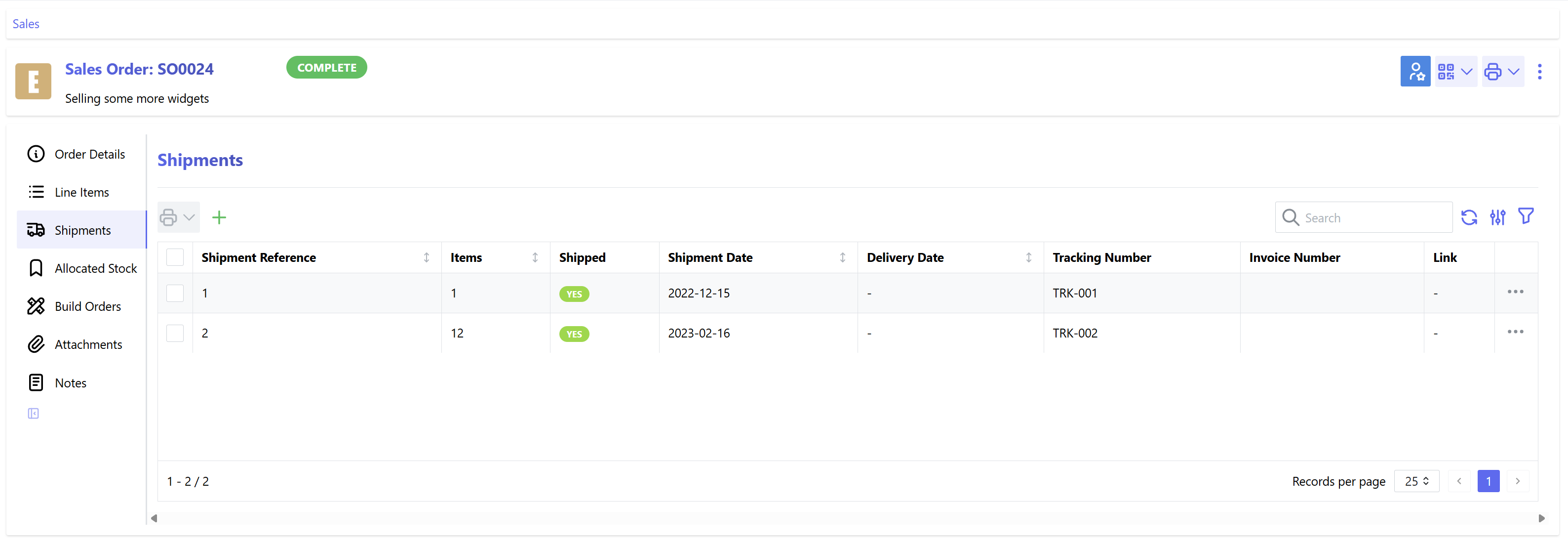
Completed Shipments
Shipment Data
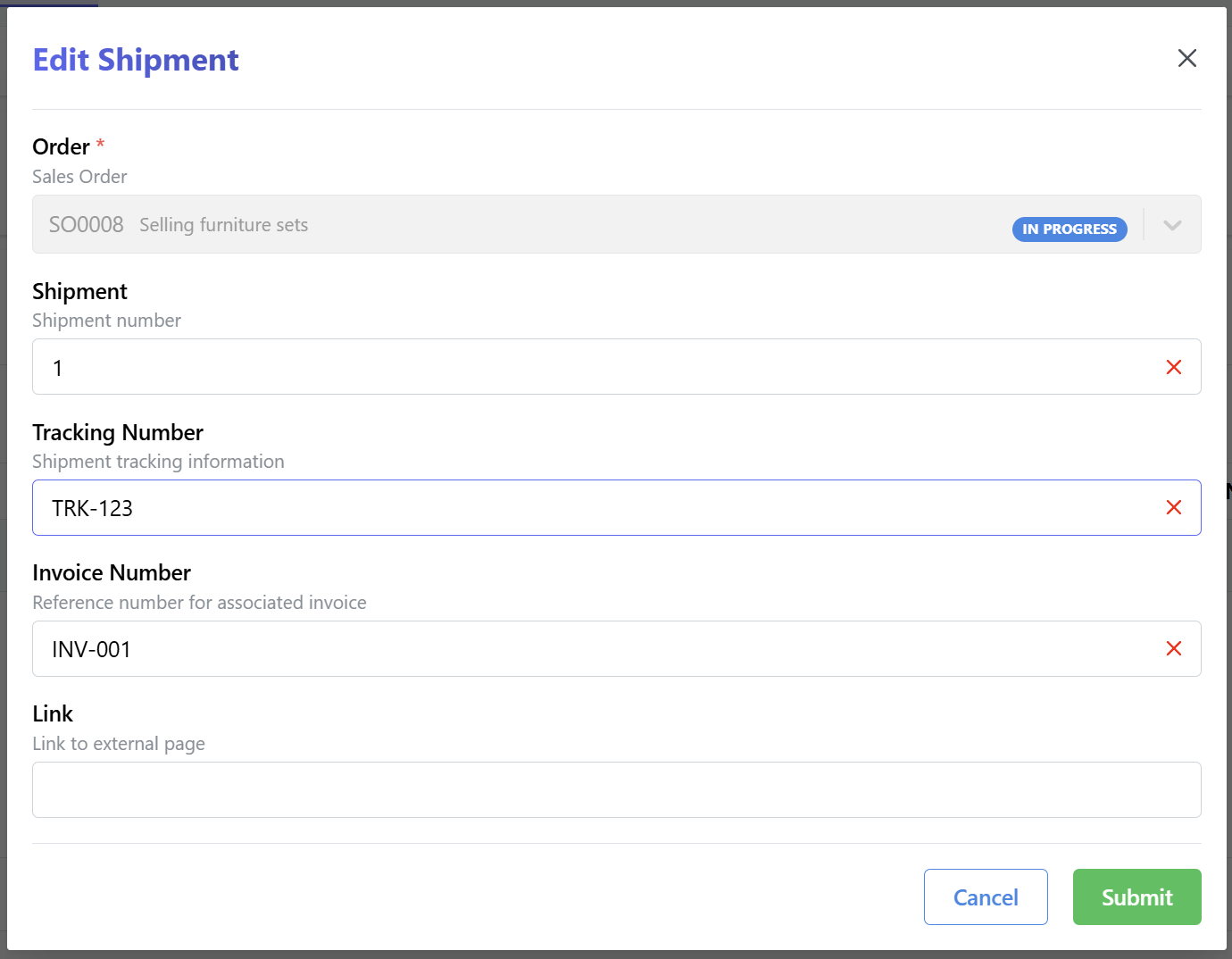
Each shipment provides the following data fields:
Reference
A unique number for the shipment, used to identify each shipment within a sales order. By default, this value starts at 1 for the first shipment (for each order) and automatically increments for each new shipment.
Shipment Address
A shipping address can be optionally specified for an individual shipment. If not specified, the shipping address assigned to the sales order will be used.
Tracking Number
An optional field used to store tracking number information for the shipment.
Invoice Number
An optional field used to store an invoice reference for the shipment.
Link
An optional URL field which can be used to provide a link to an external URL.
All these fields can be edited by the user:
Sales Order Settings
The following global settings are available for sales orders:
| Name | Description | Default | Units |
|---|---|---|---|
Sales Order Reference Pattern |
Required pattern for generating Sales Order reference field | SO-{ref:04d} |
|
Require Responsible Owner |
A responsible owner must be assigned to each order | False |
|
Sales Order Default Shipment |
Enable creation of default shipment with sales orders | False |
|
Edit Completed Sales Orders |
Allow editing of sales orders after they have been shipped or completed | False |
|
Mark Shipped Orders as Complete |
Sales orders marked as shipped will automatically be completed, bypassing the "shipped" status | False |
|
Shipment Requires Checking |
Prevent completion of shipments until items have been checked | False |
|
Block Incomplete Item Tests |
Prevent allocation of stock items to sales orders if required item tests are incomplete | False |