Return Orders
Return Orders
Return Orders allow stock items (which have been sold or allocated to a customer) to be to be returned into stock, typically for the purpose of repair or refund.
An Order By Any Other Name
A Return Order may also be known as an RMA
View Return Orders
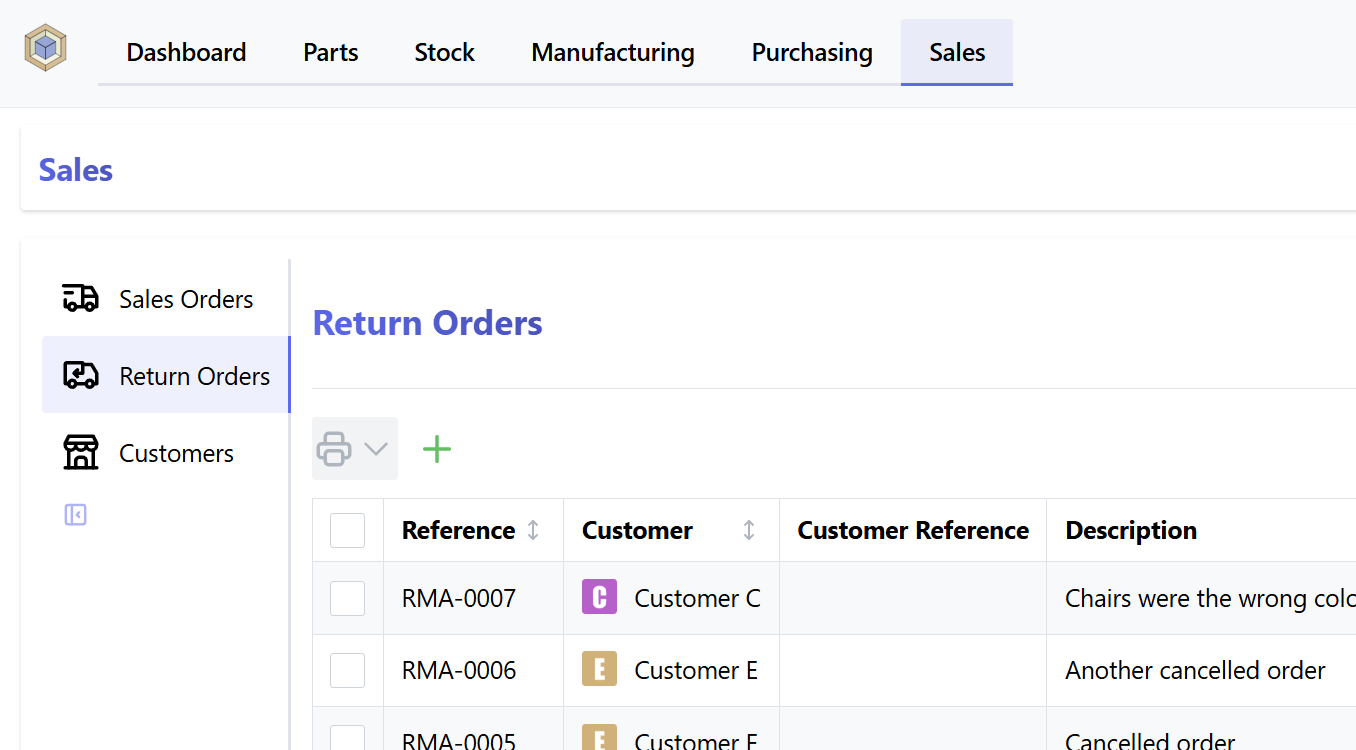
To navigate to the Return Order display, select Sales from the main navigation menu, and Return Orders from the sidebar:

The following view modes are available:
Table View
Table View provides a list of Return Orders, which can be filtered to display a subset of orders according to user supplied parameters.

Calendar View
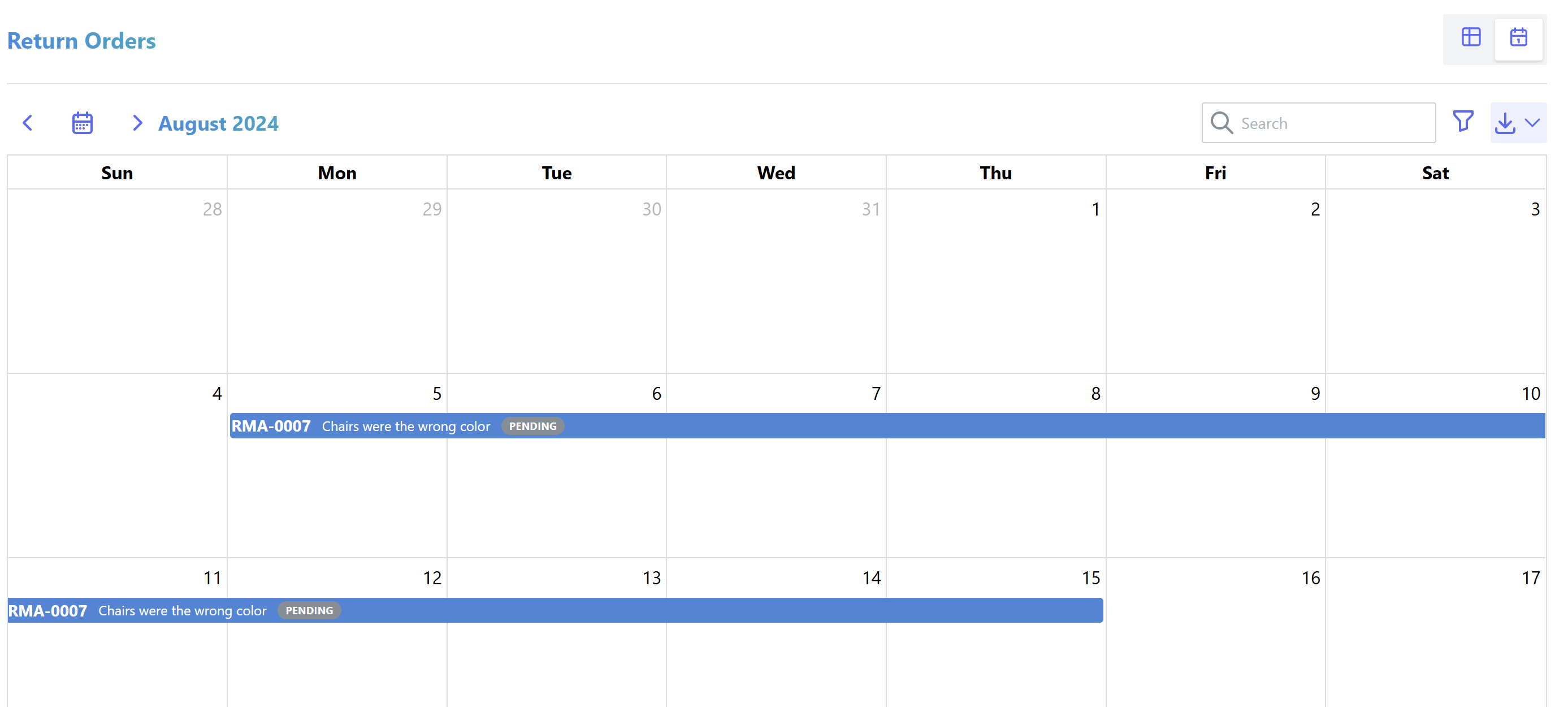
Calendar View shows a calendar display with outstanding return orders, based on the various dates specified for each order.
Enable Return Order Functionality
By default, Return Order functionality is not enabled - it must be enabled by a staff user from the settings page:

Once this setting is enabled, you can access the "Return Orders" page from the main navigation bar:
Return Order Permissions
Permissions for Return Orders are managed via the return_order permission group. Users are assigned appropriate permissions based on the groups they are part of.
View Return Orders
A list of Return Orders is displayed on the Return Order index page:

Various filters are available to configure which orders are displayed, and how they are arranged.
Return Order Status Codes
Each Return Order has a specific status code, as follows:
| Status | Value | Description |
|---|---|---|
| Pending | 10 | Order is pending, waiting for receipt of items |
| In Progress | 20 | Items have been received, and are being inspected |
| On Hold | 25 | Order is on hold |
| Complete | 30 | Order is complete |
| Cancelled | 40 | Order has been cancelled |
Return Order Status supports custom states.
Create a Return Order
From the Return Order index, click on New Return Order which opens the "Create Return Order" form.
A Return Order is linked to a specific customer, which can be selected from the list of existing customers
Customers Only
Only companies with the "Customer" attribute enabled will be shown and can be selected
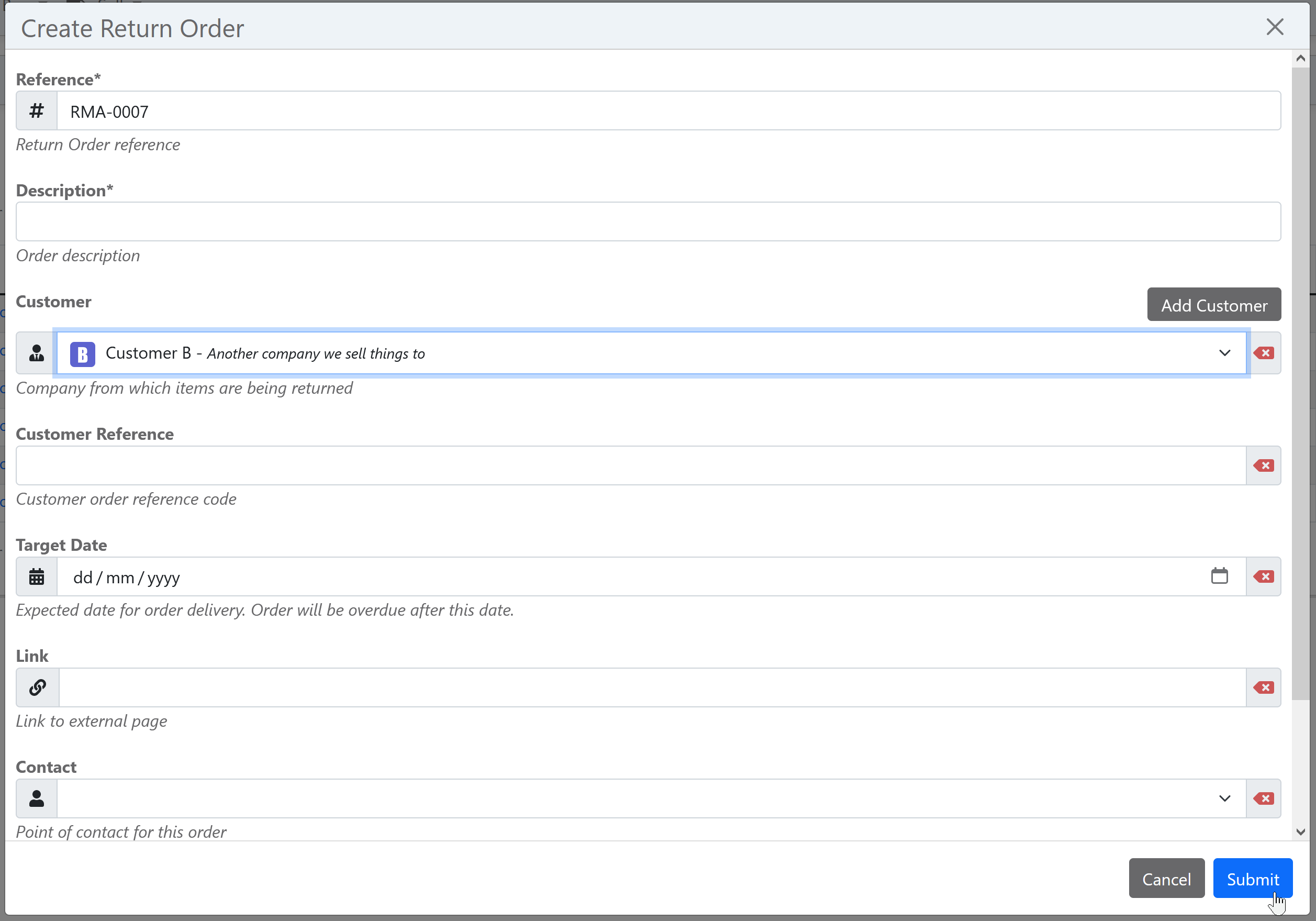
Fill in the rest of the form with the return order information, and then click on Submit to create the order.
Return Order Reference
Each Return Order is uniquely identified by its Reference field. Read more about reference fields.
Responsible Owner
The order can be assigned to a responsible owner, which is either a user or group.
Return Order Detail
Individual Return Orders can be viewed via the Return Order detail page:
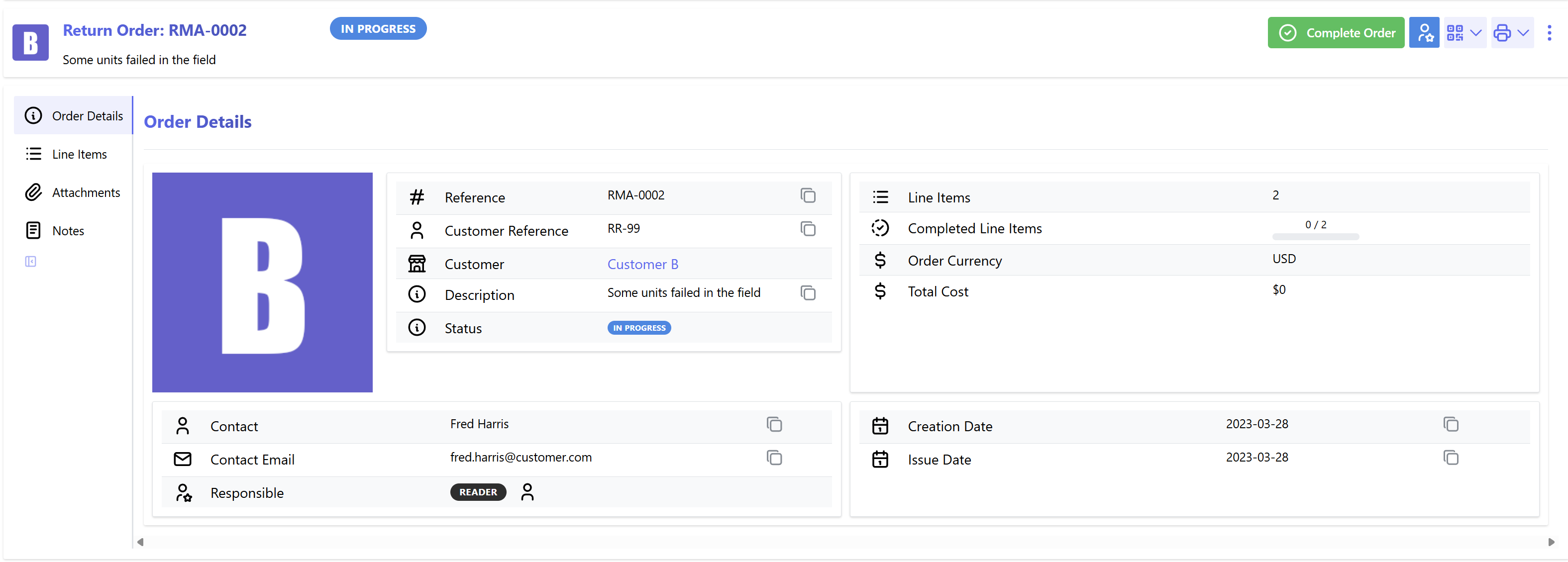
Here the details of the return order are available, and specific actions can be performed:
Edit Return Order
The Return Order can be edit by selecting the Edit icon under the actions menu.
Line Items
Return Order line items can be added while the status of the order is In Progress. Any stock item which is currently sold or assigned to the particular customer can be selected for return.
Serialized Stock Only
Only stock items which are serialized can be selected for return from the customer
Discount
An optional discount percentage can be applied to each line item.
Each line item tracks a Cost (the cost associated with the return, repair, or replacement of the item) in addition to the quantity, target date and notes fields common to other order types. This cost is purely informational - it is not linked to any accounting or invoicing system.
Line Item Outcome
Each line item has an Outcome, which records the disposition decided for the returned item:
| Status | Value | Description |
|---|---|---|
| Pending | 10 | No outcome has been decided yet (default value for a new line item) |
| Return | 20 | The item is to be returned to the customer, with no further action |
| Repair | 30 | The item is to be repaired, and returned to the customer |
| Replace | 40 | The item is to be replaced with a new item |
| Refund | 50 | The item cannot be repaired, and a refund is to be issued |
| Reject | 60 | The return is rejected |
The Outcome is not available when a line item is first created - it can only be set afterwards, by editing the line item. Selecting an outcome is a manual, record-keeping step only: InvenTree does not automatically create a replacement order, issue a refund, or link to a repair process based on the selected outcome. Any follow-up action (raising a new Sales Order for a replacement, processing a refund, or tracking a repair) must currently be actioned separately.
Return Order Line Item outcome supports custom states.
Extra Line Items
While line items must reference a particular stock item, extra line items are available for any other itemized information that needs to be conveyed with the order - for example freight charges or service fees. Extra line items support an optional discount percentage, the same as regular line items.
Issue Order
Once all line items have been added, click on the Issue button on the main return order detail panel and confirm the order has been issued to the customer. This moves the order into the In Progress state, and allows line items to be received.
Receive Line Items
As returned items arrive from the customer, they can be marked as "received" against the return order. This is the point at which the return order actually affects stock.
To receive one or more line items:
- either individually: click on the Receive Item button on the row for a specific line item
- or in bulk: select multiple unreceived rows in the line item table, then click on the Receive selected items button above the table
Permissions
Marking line items as received requires the "Return order" ADD permission.
Order Status
Line items can only be received while the order status is In Progress.
In the "Receive Items" form, a destination Location must be selected - this is where the returned stock will be placed. An optional per-item Status can also be set for each item being received (for example, to mark an item as damaged or destroyed on arrival); if left unset, received items default to a Quarantined stock status, since they have not yet been inspected.
Receiving a line item performs the following actions on the underlying stock item:
- Transfers the stock item to the selected destination location
- Sets the stock item status (defaulting to Quarantined)
- Removes the Customer reference from the stock item
- Clears any outstanding sales order allocations against the stock item
- Adds a tracking entry recording the return
Partial Returns
If a customer returns less than the full quantity of a non-serialized stock item, InvenTree automatically splits the returned quantity into a new stock item, leaving the remainder of the original stock item untouched (e.g. still recorded as sold to the customer).
Once received, a line item's Outcome can be set - see Line Item Outcome above.
Complete Order
Once all returned items have been received and any outcomes have been actioned, click on the button on the main return order detail panel and confirm the order as complete.
It is not necessary for every line item to be marked as received before an order can be completed - this allows an order to be closed out even if some items were never returned by the customer.
Cancel Order
If the return will not be processed, the order can be cancelled instead. Click on the Cancel order option under the order actions menu, and confirm the return order has been cancelled.
Hold Order
An open order (Pending or In Progress) can be placed On Hold, to indicate that it is temporarily paused without being cancelled. Click on the Hold Hold order option under the order actions menu to place the order on hold. A held order can subsequently be issued again to resume progress.
Duplicate Return Order
Duplicating a Return Order allows the user to quickly create a new copy of an existing order, using the same customer information.
To duplicate an existing order, select the Duplicate order action from the menu in the top-right of the screen.
Line Items Not Copied
Unlike Purchase Orders and Sales Orders, Return Order line items are not copied when duplicating an order - each line item is tied to a specific physical stock item being returned, so this information cannot be sensibly duplicated. Extra line items and parameters can optionally be copied.
Return Order Reports
Custom reports can be generated against each Return Order.
Order Scheduling
Return Orders can be scheduled to be completed on a specific date. This can be useful for planning and tracking the return of items.
Start Date
The Start Date of the return order is the date on which the order is scheduled to be issued to the customer.
Target Date
The Target Date of the return order is the date on which the order is scheduled to be completed.
Overdue Orders
If the Target Date of a return order has passed, the order will be marked as Overdue. This can be useful for tracking orders which are behind schedule.
Calendar view
Using the button to the top right of the list of Return Orders, the view can be switched to a calendar view using the button . This view shows orders with a defined target date only.
This view can be accessed externally as an ICS calendar using a URL like the following:
http://inventree.example.org/api/order/calendar/return-order/calendar.ics
by default, completed orders are not exported. These can be included by appending ?include_completed=True to the URL.
Return Order Settings
The following global settings are available for return orders:
| Name | Description | Default | Units |
|---|---|---|---|
Enable Return Orders |
Enable return order functionality in the user interface | False |
|
Return Order Reference Pattern |
Required pattern for generating Return Order reference field | RMA-{ref:04d} |
|
Require Responsible Owner |
A responsible owner must be assigned to each order | False |
|
Edit Completed Return Orders |
Allow editing of return orders after they have been completed | False |